
How to add text in Alight Motion? Comprehensive Guide 2026
Are you new to Alight Motion and confused about adding text to your videos? Many beginners struggle to find the right text tools or use them properly. This often leads to dull visuals that fail to grab attention.
Text plays a key role in video editing. It adds meaning, emotion, and clarity to your content. With Alight Motion’s text tool, you can create titles, captions, and animated text that instantly upgrade your videos.
In this guide, you’ll learn how to add text in Alight Motion, customize fonts, apply animations, and create professional-looking text effects. Each step is simple and beginner-friendly, so you can start using it right away.
Why Add Text in Alight Motion?
Text makes your message clear and easy to understand. It helps explain your video when visuals alone are not enough. You can create bold headings, short titles, and clear captions that guide viewers through your content. This keeps your audience engaged from start to finish.
Using text in Alight Motion also improves visual appeal. It adds structure, style, and purpose to every video you create.
How to Add Text in Alight Motion
Adding Text in Alight Motion is simple once you follow the right steps. You can add Text, style it, and animate it to match your video’s mood. Follow the steps below to do it correctly.
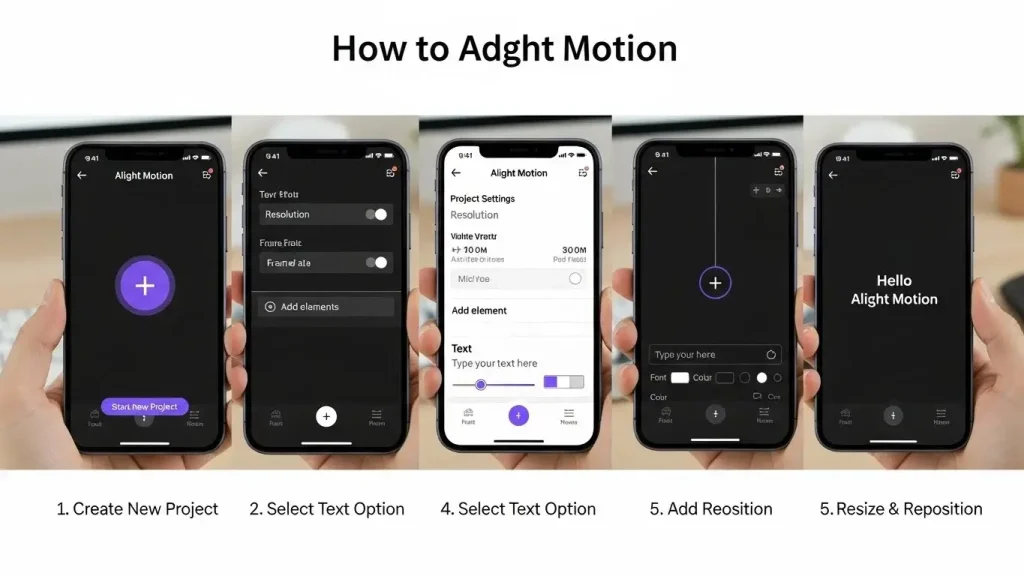
Step 1: Open Alight Motion and Create a Project
Download Alight Motion from a trusted source and open the app. Tap the + icon on the home screen to start a new project. Choose your resolution, aspect ratio, and frame rate based on your video needs. You can also open an existing project if you want to continue editing.
Step 2: Import Your Media
Tap the + icon at the bottom-right corner of the screen. Select Media and import your photos or videos from the gallery. Once added, your media will appear on the timeline and be ready for editing.
Step 3: Add a Text Layer
Tap the + icon again and choose Text from the menu. Select Add Text to create a new text layer. Type your Text directly into the text box. The Text will appear on your video instantly.
Step 4: Customize the Text
Use the top menu to edit your Text. Adjust alignment, font style, size, and color. Open View All Fonts to explore more font options. You can also add shadows, borders, effects, and animations to make the Text stand out. Tap the checkmark to save your changes.
Step 5: Preview and Export
Play the preview to review your edits. Make adjustments if needed until the Text looks perfect. Save the project and export it in your preferred format. Your video is now ready to share on social media or with friends.
How to Animate Text in Alight Motion
Want your text to move, reveal, or flow smoothly on screen? Text animation helps your videos feel dynamic and professional. Follow these steps to animate text in Alight Motion the right way.
Step 1: Style the Text for Animation
Open your text layer and tap Color & Fill. Select No Fill to remove the background. Go back and open Border & Shadow, then enable Stroke and choose a color. This setup makes animation effects cleaner and more visible.
Step 2: Extend the Text Duration
Check the length of your text layer on the timeline. If it’s too short, extend it to around 8–9 seconds. This gives enough time to add keyframes and smooth motion before the text disappears.
Step 3: Duplicate the Text Layer
Duplicate the text layer and hide the copy for now. Select the original layer and turn off Stroke, then enable Fill using the same color. This creates a solid text layer that works better with masking effects.
Step 4: Apply Masking Animation
Add a Shape Layer and match its color with the text stroke. Resize and position the shape over the text. Align both layers on the timeline, select them, and apply Masking. Move the shape using keyframes to animate how the text appears or reveals.
Step 5: Adjust Gradient and Opacity
Lower the opacity of the masked layer to about 50%. Open the Color panel and apply a gradient. Adjust gradient points to create smooth transitions and depth. Preview your animation and fine-tune it until it looks natural.
Once you’re comfortable with text animation, you can explore how Alight Motion compares with other editors. A detailed comparison between Alight Motion vs CapCut can help you choose the best tool for your editing style.
TIPS FOR USING TEXT EFFECTIVELY
- Avoid long sentences. Short text is easier for viewers to follow.
- Use light text on dark backgrounds or dark text on light backgrounds for clear visibility.
- Use the mask and gradient tools to give your text a modern and stylish look.
- Don’t stuff too much on the screen. Let your text have breathing space.
- Use fonts that go well together so your video looks neat and professional.
FAQs
Final Verdict
Adding text in Alight Motion helps you create clear, engaging, and professional videos. With flexible text tools, font options, and animation features, you can give meaning and style to every scene.
The app’s simple interface makes text editing easy for beginners, while advanced tools support creative animations. From titles to captions, text improves both visual impact and storytelling.
Once you understand text styling and animation, your videos feel more polished and dynamic. Experiment with different text designs, refine your skills, and create content that truly stands out.