

How to Replace Images in Alight Motion? Step By Step Guide 2026
Alight Motion Pro is a free and easy-to-use video editing tool that helps you create professional-quality videos. If you use Alight Motion, you already know the powerful features it offers. You can apply different templates and presets to make your videos more appealing and polished.
One common issue users face is losing edits when changing an image during editing. This can be frustrating and time-consuming. To solve this problem, Alight Motion provides a simple solution. You can now replace images while keeping all effects, animations, and edits intact. There is no need to start editing from scratch.
In this guide, you’ll learn how to replace images in Alight Motion step by step. You’ll see the easiest method, common mistakes to avoid, and tips to keep your edits smooth and professional.
Why Replace Images in Alight Motion?
It’s important to know why replacing images is useful in Alight Motion. It helps you change pictures without starting your project again. Your effects, timing, and layout stay the same while your video looks new and updated. Below are some common reasons why image replacement is needed in Alight Motion.
How to Replace an Image in Alight Motion
Alight Motion offers multiple ways to replace an image without breaking your edits. You can swap images, colors, text, or shapes based on your project needs. Below are the easiest methods explained step by step.
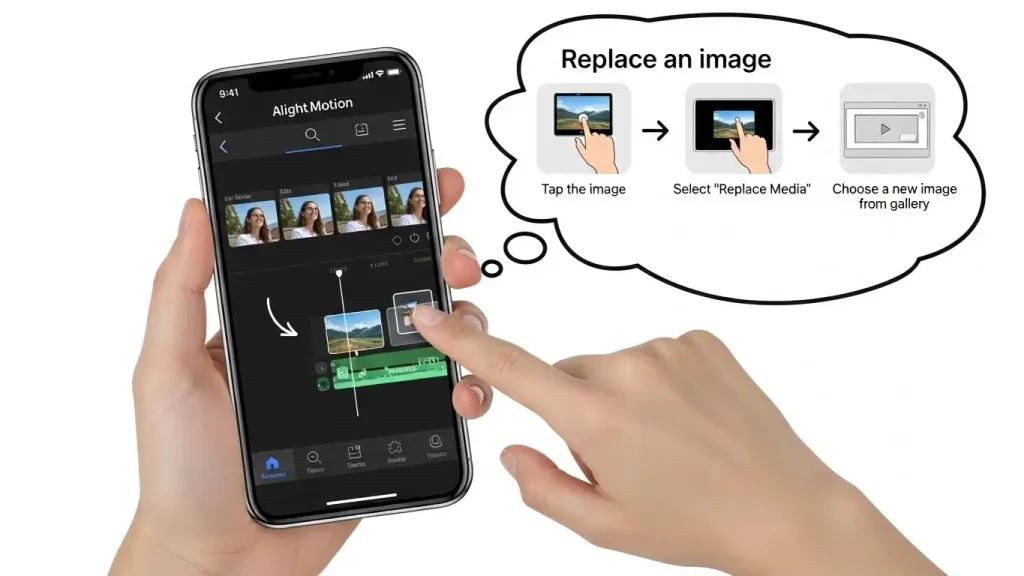
Method 1: Replace an Image With a New Image
This method works best when you want to change the image but keep all effects and animations.
- Open Alight Motion and select your project
- Tap the image layer you want to replace
- Choose Media from the bottom menu
- Tap Replace and select a new image from your gallery
- Adjust size, position, brightness, or opacity as needed
Your effects and timing will remain unchanged.
Method 2: Replace an Image With a Color or Gradient
Use this method when you want a clean background instead of an image.
- Select the image layer
- Tap Color from the bottom menu
- Choose a solid color or gradient
- Adjust opacity, brightness, and contrast
This is useful for background designs or minimal visuals.
Method 3: Replace an Image With a Text Layer
This method is helpful when you want text instead of an image.
- Select the image layer and tap Delete
- Tap the + icon and choose Text
- Type your text
- Change font, color, size, and alignment
You can also animate the text for a better impact.
Method 4: Replace an Image With a Shape or Graphic
This option works well for icons, backgrounds, or design elements.
- Delete the image layer
- Tap the + icon and select Shape or Graphics
- Choose a shape
- Adjust color, size, and position
Shapes can also be animated for creative effects.
Pro Tips and Tricks to Replace Images in Alight Motion
These helpful tips will make image replacement easier and help you achieve better editing results.
1. Image Sequencing
Replace images in a sequence to create smooth visual flow. This technique works great for slideshows, reels, and animated templates where multiple images appear one after another.
2. Use the Transform Tool
The Transform tool helps you adjust the image’s position, size, and rotation. Always align the new image properly to avoid distortion or unwanted cropping.
3. Organize Your Layers
Naming and color-coding layers keep your project clean. This makes it easier to find the exact image layer when replacing visuals, especially in complex projects.
4. Use Undo and Experiment
Don’t hesitate to test different images. The Undo option lets you quickly revert changes, so you can experiment without the fear of losing your edits.
5. Match Colors
Adjust brightness, contrast, saturation, and color tones to keep a consistent look. Proper color matching ensures the new image blends smoothly with the rest of the project.
6. Animate Image Changes
Use keyframes to animate image transitions. This creates smooth movements and makes image replacement look professional and visually appealing.
Latest Updates & Features about Replacing Images
- Alight Motion now offers replacing images with a GIF feature, allowing you to add animated images into your projects freely
- The Media tab of the Alight Motion app now includes a recent section from which you can access the recently used media files with ease.
- The app now supports replacing images with 3D Models, making it easy to add interactive and aesthetic elements to your videos.
Conclusion
Replacing images in Alight Motion is simple and easy to do, even for beginners. By following the steps and tips described above, you can replace images with media files, colors, gradients, or text while keeping your edits intact. This makes creating attractive and professional projects much faster and smoother.
Whether you are a social media influencer, content creator, or marketer, Alight Motion gives you the tools to take your video editing skills to the next level.